


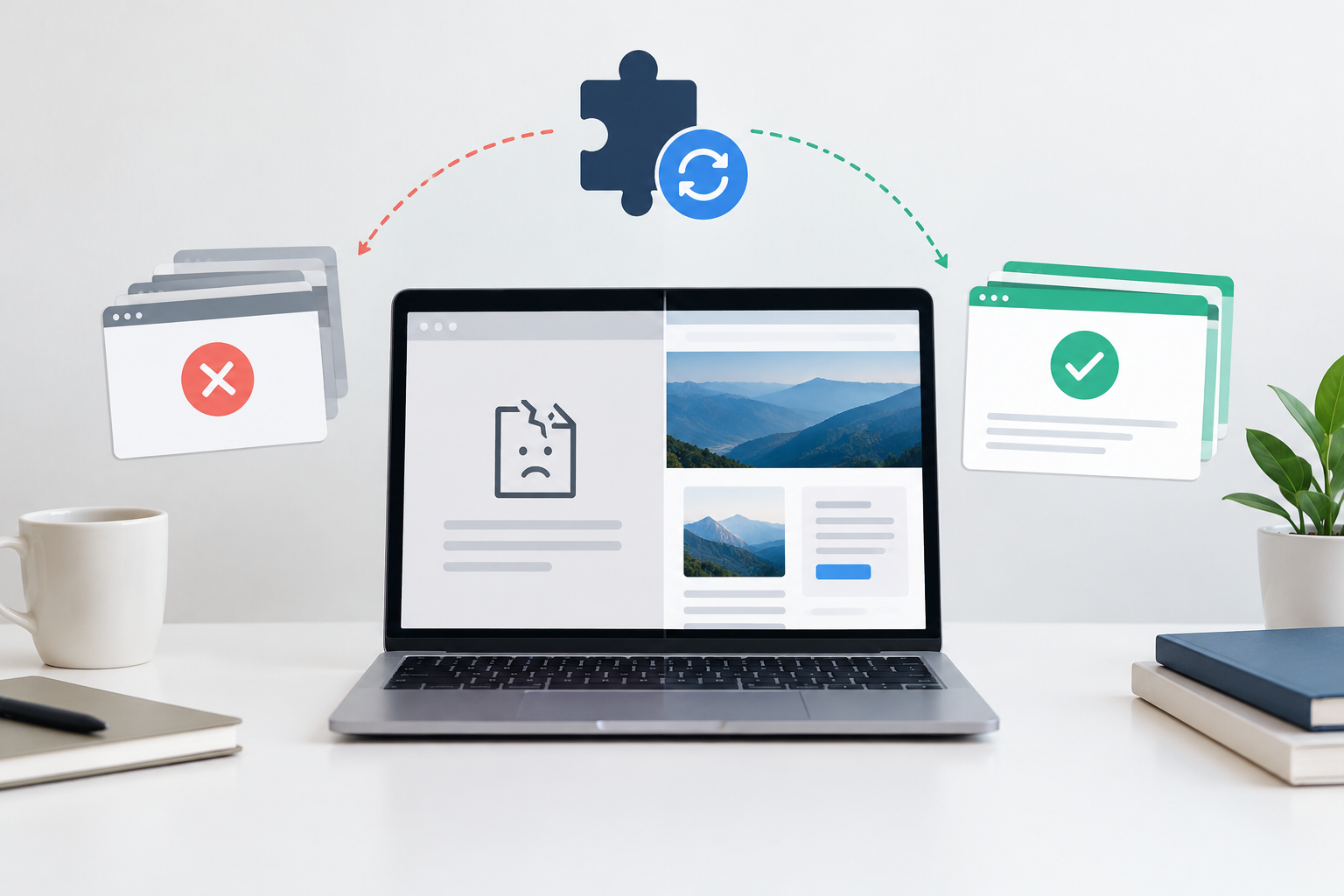
WordPress plugin updates sometimes break a website because they introduce code, database, or dependency changes that conflict with the site’s WordPress version, theme, other plugins, customizations, server environment, or cached assets. WordPress plugin update risks can be lowered by backing up the site, validating updates on a testing server, checking critical functions, deploying changes in a controlled sequence, and monitoring the live site afterward.
Why plugin updates can cause website failures
A WordPress website is an interconnected software system. Plugins communicate with WordPress core, themes, databases, third-party services, payment tools, email systems, and other plugins. An update to one component can therefore affect workflows far beyond the plugin’s settings page.
Updates are still necessary. They may fix vulnerabilities, correct bugs, improve performance, or preserve compatibility with evolving technology. Avoiding updates indefinitely usually exchanges an immediate compatibility concern for growing security, stability, and support risks. The practical objective is not to stop updating, but to manage changes deliberately. This is why maintenance is risk management rather than a simple administrative task.
Code and dependency conflicts
A plugin may begin using a newer programming function, library, API, or WordPress feature. If the server, theme, custom code, or another plugin expects different behavior, the update may produce warnings, fatal errors, broken layouts, or features that silently stop working.
Changes to hooks, templates, and APIs
WordPress plugins interact through hooks, filters, templates, and application programming interfaces. When an update removes or changes one of these integration points, customizations and connected plugins may no longer receive the data or behavior they expect.
Database migrations
Some updates modify database tables, settings, or stored content. An interrupted or incompatible migration can leave the code and database out of sync. Rolling back plugin files alone may not reverse these changes, which makes a complete pre-update backup especially important.
Theme and frontend conflicts
Plugins may load stylesheets and scripts that affect menus, forms, page builders, popups, product pages, or account areas. New assets can clash with theme code or stale cached files, causing visual defects and browser-side errors even when the WordPress dashboard appears normal.
Server environment differences
A plugin that works in one environment may fail in another because of PHP versions, memory limits, database versions, file permissions, web server rules, or security controls. Compatibility labels are useful signals, but they cannot account for every hosting configuration and site-specific customization.
Several updates applied at once
Batch updates make diagnosis harder. If the site fails after ten components change, the responsible update and interaction may be unclear. Controlled groups and documented changes help teams isolate the cause and make better rollback decisions.
Common signs of a WordPress plugin conflict
Not every failed update produces a completely blank site. Some conflicts affect only a specific browser, user role, page template, background process, or transaction path. A successful login to the dashboard does not prove that the customer experience still works.
- A critical error, blank screen, or inaccessible administration area
- Broken page layouts, navigation, forms, or interactive elements
- Checkout, cart, account, subscription, or payment failures
- Emails, scheduled tasks, integrations, or webhooks that stop running
- Slow pages, high server resource use, or repeated timeouts
- Unexpected redirects, permission changes, or login problems
- JavaScript errors or missing styles caused by stale or incompatible assets
- Functions that appear normal but save, calculate, or transmit incorrect data
A safer workflow for WordPress plugin updates
Safe WordPress updates depend on a repeatable process rather than a single precaution. The depth of testing should reflect the site’s complexity, traffic, revenue impact, custom code, and regulatory or operational requirements.
1. Inventory the site and assess the update
Record active plugins, versions, licenses, integrations, custom code, and business-critical functions. Review the update changelog, known issues, minimum requirements, security relevance, and compatibility notes. This context helps determine whether an update needs urgent action or additional investigation. A practical WordPress update schedule can prevent both neglect and indiscriminate deployment.
2. Create a current, recoverable backup
Back up the database and site files before production changes. Keep copies away from the live server, use retention periods suited to the business, and verify that authorized people can access the backups during an incident. A backup is only a useful safeguard if the team understands the restoration process. Site owners should evaluate backup retention and restore testing as part of continuity planning.
3. Validate updates on a testing server
Use a recent copy of the site in a controlled environment that closely reflects production. Apply the proposed updates there first, then check logs and test important user journeys. This testing-server update process can expose obvious conflicts before customers or staff encounter them.
Testing environments must be handled carefully. Sensitive data should be protected, outbound customer emails should be disabled or redirected, payment actions should use safe test modes where available, and search engines should not index the copied site.
4. Test business-critical functions
A useful test plan reflects what the website actually does. Automated checks can improve consistency, but manual review remains valuable for visual and workflow problems.
- Load representative pages on desktop and mobile viewports
- Submit important contact, lead, registration, and login forms
- Check search, navigation, filters, downloads, and gated content
- Confirm administrator and customer account actions
- Test cart, checkout, tax, shipping, payment, and order notifications on ecommerce sites
- Verify analytics, consent tools, customer relationship systems, and other integrations
- Review PHP, browser, security, and application logs for new errors
- Compare page response and key performance indicators with a known baseline
5. Deploy at a controlled time
Choose a lower-impact maintenance window when practical, confirm that the backup completed, and avoid unrelated changes during the same deployment. Apply updates in an order that supports troubleshooting. Record what changed, when it changed, and who approved or performed the work.
6. Verify and monitor production
Repeat essential smoke tests on the live site after deployment. Clear relevant caches carefully, check uptime and error logs, and monitor security events and business functions. Some failures emerge only under real traffic, scheduled tasks, or live third-party connections, so post-update observation is part of the deployment rather than an optional extra.
7. Roll back or repair when necessary
If an update causes disruption, protect the affected user journey first. Depending on the failure, recovery may involve restoring files and the database, reverting a component, disabling a conflicting feature, clearing caches, or applying a targeted fix. Database migrations and live transactions require particular care because a full restore can overwrite orders, form entries, or other data created after the backup.
How to prioritize updates without creating unnecessary risk
Not every update has the same urgency or impact. A vulnerability affecting an exposed, actively used plugin may need rapid remediation. A minor feature release on a noncritical component may allow more time for compatibility review. Deferring an update should be an informed, documented decision, not a permanent default.
| Update situation | Typical priority | Risk controls |
|---|---|---|
| Actively exploited or critical security issue | Immediate assessment and accelerated action | Current backup, focused validation, controlled deployment, intensive monitoring |
| Important security or compatibility release | High | Prompt testing, critical-path checks, documented rollout |
| Routine bug-fix release | Normal | Scheduled testing and deployment within the maintenance cycle |
| Major feature or version release | Planned | Compatibility research, broader regression testing, rollback planning |
| Abandoned or unsupported plugin | Strategic remediation | Assess replacement, migration, data handling, and dependency removal |
This framework is not a universal service-level promise. Technical severity, site exposure, business activity, available mitigations, and vendor guidance can change the appropriate response.
Why automatic updates need oversight
Automatic updates can shorten exposure to known vulnerabilities and reduce the chance that routine maintenance is forgotten. They can also deploy changes outside staffed hours or without site-specific functional testing. The right approach depends on the component and the consequences of failure.
Low-risk, well-supported components may be reasonable candidates for automation when reliable backups, uptime checks, error detection, and recovery procedures are in place. Revenue-critical, heavily customized, or tightly integrated functionality generally merits more controlled validation. Automation should support a maintenance strategy, not replace one.
Extra considerations for WooCommerce and complex sites
WooCommerce and other transactional websites have more failure paths than a brochure site. An update can affect product displays, inventory, taxes, shipping, discounts, payment gateways, subscriptions, accounts, emails, or order synchronization. Testing should cover complete transactions and downstream systems, not merely whether the homepage loads.
Recovery is also more complicated on an active store because orders and customer records may be created between the backup and the incident. Restoring the entire database without a data-preservation plan can remove valid transactions. High-traffic, membership, multilingual, multisite, and enterprise installations similarly need broader regression testing and coordinated change controls.
How professional maintenance reduces disruption
Professional WordPress maintenance turns updates into a managed operational process. A structured service can combine daily backups, testing-server validation, security and uptime monitoring, performance checks, technical troubleshooting, and monthly maintenance reports.
The value lies in continuity and accountability. The provider maintains an inventory, evaluates change risk, validates updates, checks critical functions, records deployment activity, and responds when monitoring reveals a problem. Reporting also gives business owners visibility into updates completed, security observations, availability, performance work, and unresolved recommendations.
No responsible maintenance process can promise that every update will be conflict-free or that a website will be immune from cyberattacks. It can, however, reduce avoidable risk, improve detection, establish recovery options, and make technical changes more controlled.
A practical update checklist for site owners
- Maintain an accurate inventory of plugins, integrations, and customizations
- Remove inactive or unnecessary plugins after confirming they are not dependencies
- Use supported software from accountable developers
- Review changelogs, requirements, and known compatibility issues
- Create current file and database backups before changing production
- Test restoration procedures instead of assuming backups will work
- Validate updates on a representative testing server
- Test the site’s critical customer and staff workflows
- Deploy at a controlled time and avoid mixing unrelated changes
- Monitor uptime, errors, security events, and performance after deployment
- Document the result, including issues, fixes, and deferred actions
- Keep an escalation path for urgent troubleshooting and recovery
Make plugin updates a controlled business process
Plugin updates are necessary changes to an interconnected system, not one-click housekeeping. Business website owners can lower WordPress plugin update risks by combining timely patching with backups, plugin compatibility testing, controlled deployment, functional validation, monitoring, and documented recovery procedures.
HorizonWP applies a structured maintenance workflow built around testing-server validation, daily backups, proactive monitoring, performance care, technical support, and clear reporting. Review your maintenance approach before the next urgent update, so the team has a tested process when continuity matters most.
Frequently asked questions
Why do WordPress plugin updates sometimes break a website?
Plugin updates can break a website when new code conflicts with the WordPress core, theme, another plugin, server software, custom code, cached files, or database changes. The risk is greater when several components are updated together without compatibility testing.
Should I update every WordPress plugin immediately?
Security fixes should be assessed promptly, but deployment timing should reflect the update’s urgency, compatibility information, site complexity, and business activity. A controlled workflow can address important updates quickly while still protecting the live site.
What should I do before updating a WordPress plugin?
Create a current backup, confirm that it can be restored, review the changelog and compatibility notes, record the site’s baseline behavior, and test the update away from production whenever possible.
Can a backup prevent an update from breaking my site?
No. A backup does not prevent failure, but it provides a recovery path. Its value depends on retention, storage, completeness, and a restore process that has been tested.
How does professional WordPress maintenance reduce update risk?
Professional maintenance applies a repeatable process that includes backups, testing-server validation, compatibility checks, controlled production deployment, functional testing, uptime and security monitoring, troubleshooting, and clear reporting.