



How to Improve LCP on WordPress: A Practical Guide for Faster Key Pages
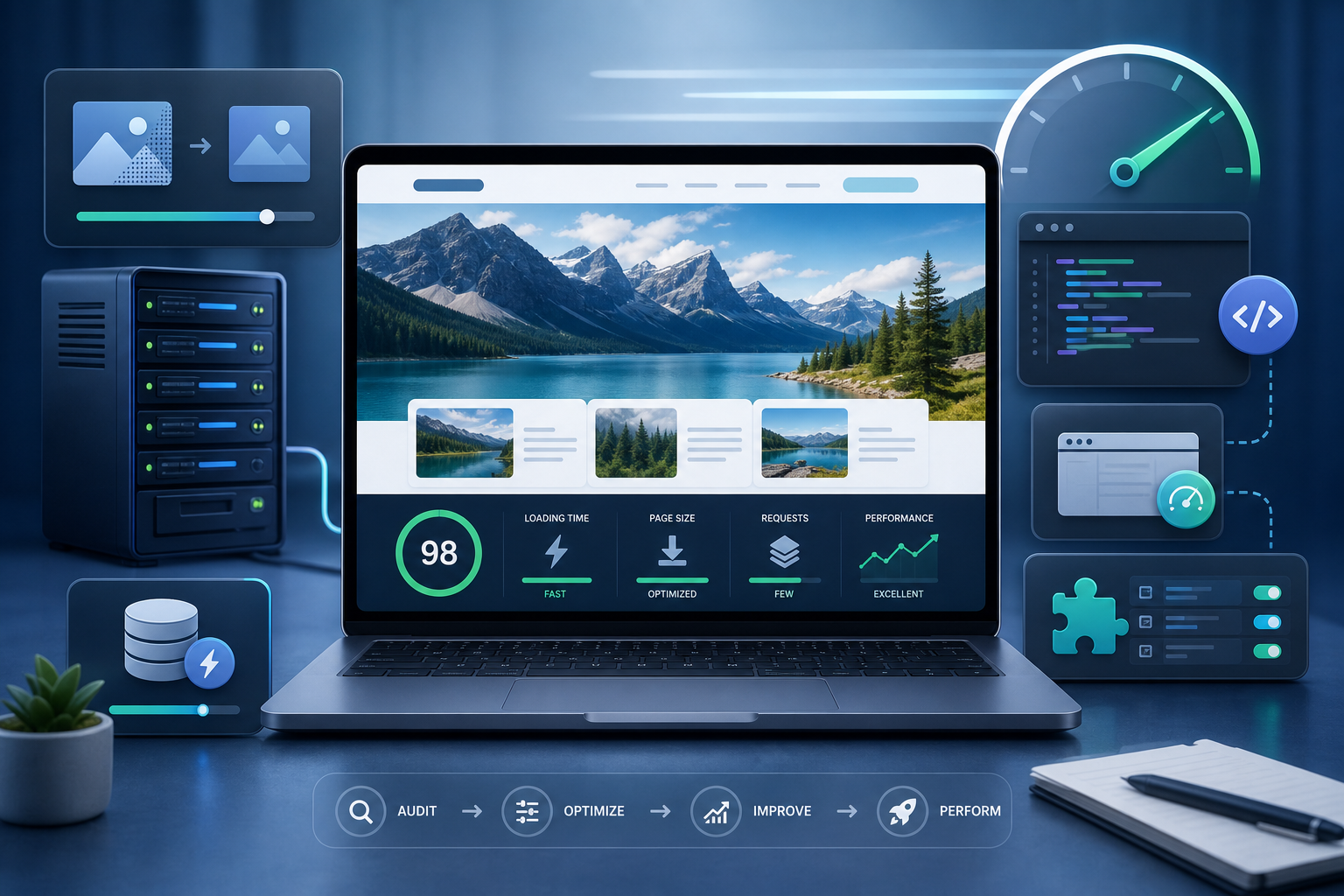
Improving LCP on WordPress means making the largest visible element on an important page load faster. In practice, that usually means fixing slow hosting response, oversized hero images, render-blocking scripts, heavy themes, too many plugins, poor caching and unoptimized page templates.
LCP matters because it is one of the Core Web Vitals signals that reflects how quickly users see the main content of a page. For business websites, a slow LCP can affect user experience, conversion and technical SEO quality.
What is LCP in WordPress?
LCP stands for Largest Contentful Paint. It measures when the largest meaningful content element in the viewport becomes visible. On WordPress pages, this is often a hero image, banner, heading block, product image, featured image or large content section near the top of the page.
If that element loads slowly, the page feels slow even if smaller assets appear quickly. That is why LCP optimization should start with the actual page template, not only with a generic speed plugin.
Common causes of poor LCP on WordPress
| Cause | Typical WordPress source | Fix |
|---|---|---|
| Slow server response | Low-quality hosting, overloaded PHP, no object cache | Improve hosting, cache, database and PHP performance |
| Large hero image | Uncompressed featured image or banner | Resize, compress and preload the LCP image |
| Render-blocking CSS/JS | Theme, builder or plugin assets | Remove unused assets and defer non-critical scripts |
| Heavy page builder template | Nested containers, animations, sliders | Simplify above-the-fold sections |
| Too many plugins | Marketing, tracking, forms, sliders, popups | Audit plugin impact and remove unnecessary scripts |
| Poor caching | No full-page cache, bad cache rules | Configure page cache, CDN and browser cache |
Step 1: Identify the LCP element
Do not optimize blindly. First identify which element is being measured as LCP on the page. Use PageSpeed Insights, Lighthouse, Chrome DevTools or a real-user monitoring tool. The LCP element can vary by device, template and viewport.
Check your homepage, service pages, product pages, blog posts and landing pages separately. A site can have acceptable LCP on one template and poor LCP on another.
Step 2: Improve server response time
If the server is slow, the browser receives the page late and every visual metric suffers. Review hosting quality, PHP version, database overhead, object caching, full-page caching and unnecessary backend load.
- Use reliable WordPress hosting.
- Enable full-page caching where appropriate.
- Review object cache for dynamic or WooCommerce sites.
- Clean unnecessary database bloat.
- Reduce slow plugin queries.
- Use a CDN for global audiences.
Step 3: Optimize the hero image or featured image
Many WordPress LCP problems come from the hero image. The image may be too large, lazy-loaded incorrectly, served in the wrong format or missing width and height attributes.
- Resize the image to the maximum display size needed.
- Use modern formats such as WebP or AVIF when supported.
- Compress without visible quality loss.
- Do not lazy-load the LCP image.
- Preload the main LCP image when appropriate.
- Set width and height to reduce layout instability.
Step 4: Reduce render-blocking assets
WordPress themes and plugins often load CSS and JavaScript on pages where they are not needed. Forms, sliders, popups, analytics scripts, builders and ecommerce plugins can all increase blocking time.
Audit what loads above the fold. Defer non-critical scripts, remove unused CSS, limit third-party tools and avoid heavy sliders or animations in the hero section.
Step 5: Simplify above-the-fold design
Beautiful hero sections can be slow if they rely on video backgrounds, sliders, large images, multiple fonts, animation libraries and nested builder elements. A simpler first viewport often improves both speed and conversion clarity.
Step 6: Test by template, not only by homepage
WordPress websites use different templates for posts, pages, archives, products, categories and landing pages. Test the templates that matter most for traffic and revenue. Prioritize pages that generate leads, sales or paid traffic.
Need a technical performance review?
If your WordPress site feels slow despite using caching or optimization plugins, the issue may be deeper: hosting, template weight, plugin conflicts, image delivery, scripts or WooCommerce behavior.
Request a WordPress performance audit to identify the changes most likely to improve LCP on your key pages.
FAQ
What is a good LCP score?
A good LCP is generally 2.5 seconds or faster for most page loads. Slower pages should be reviewed for hosting, image, caching, CSS, JavaScript and template issues.
Can a speed plugin fix LCP?
A speed plugin can help, but it may not fix structural problems such as poor hosting, heavy templates, oversized images, too many third-party scripts or inefficient plugins.
Should I lazy-load the LCP image?
Usually no. If the LCP element is the main hero image or above-the-fold image, lazy-loading it can delay the most important visual element and worsen LCP.
Does WooCommerce affect LCP?
Yes. WooCommerce can add scripts, styles, product images and dynamic elements that affect product pages, category pages and checkout performance.
Conclusion
Improving LCP on WordPress is not about installing one plugin and hoping for the best. It requires identifying the LCP element, improving server response, optimizing images, reducing render-blocking assets and simplifying key templates. Focus first on the pages that matter most to revenue, leads and search visibility.