



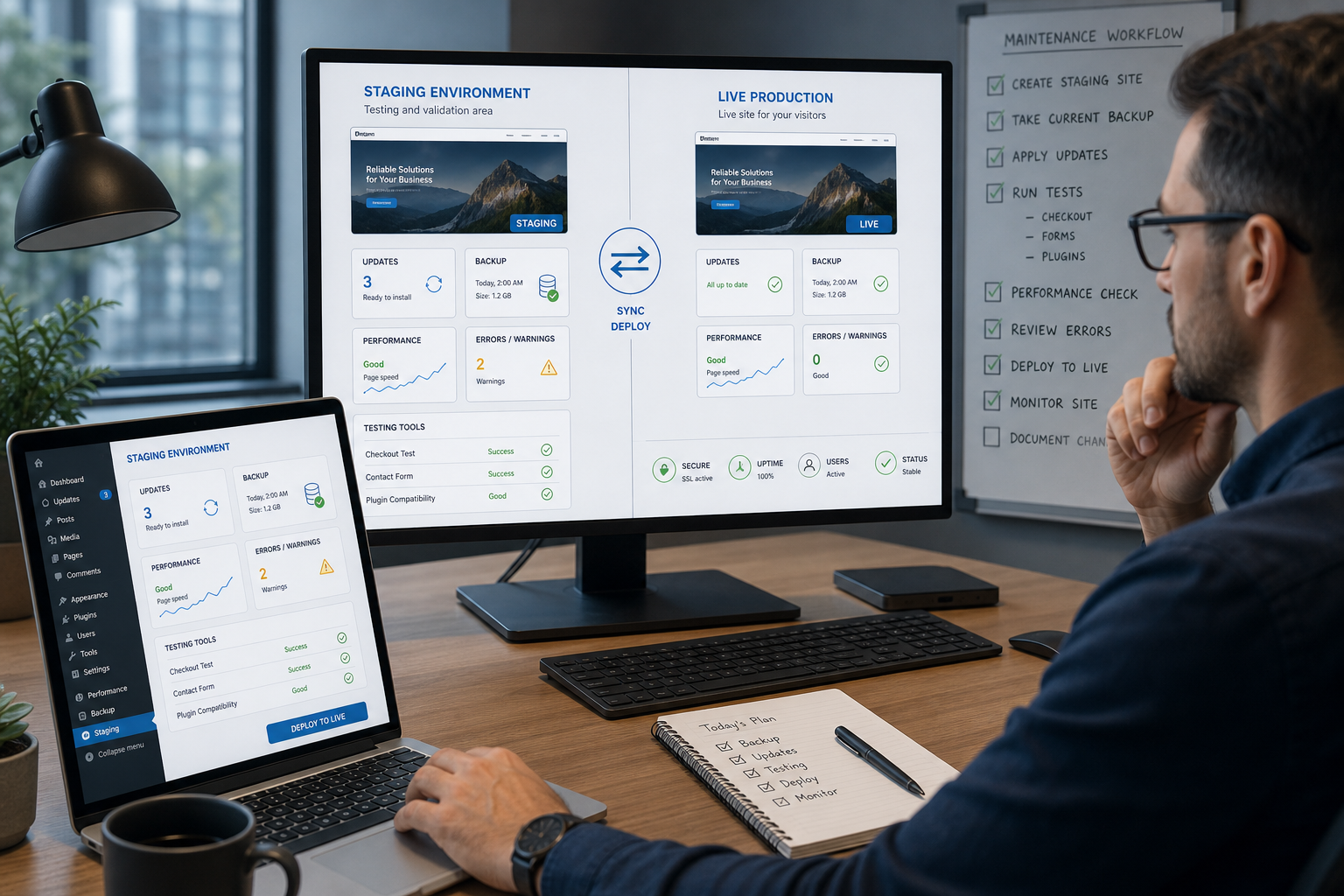
How to Test WordPress Updates in Staging Before They Break Your Live Site
Testing WordPress updates in staging means creating a safe copy of your live site, applying updates there first, checking for errors, validating performance, and only then moving the changes to production. For a business website, this process reduces the risk of downtime, broken layouts, failed forms, WooCommerce checkout issues and Core Web Vitals regressions.
A staging workflow is not just a developer habit. It is a risk-control process for any WordPress site that generates leads, sales or operational value.
Why you should not update WordPress directly in production
Updating directly on the live website may seem faster, but it gives you very little room to detect problems before users experience them. A plugin update can conflict with a theme. A WooCommerce release can affect checkout. A caching change can improve one page but break another. A visual builder update can alter templates without obvious warning.
The risk is not the update itself. The risk is applying updates without a controlled validation process.
| Question | Why it matters |
|---|---|
| Is there a recent backup? | It gives you a rollback point if something fails. |
| Was the update tested outside production? | It reduces the chance of affecting users. |
| Do key pages still work? | It protects leads, sales and navigation. |
| Was performance checked before and after? | It helps avoid Core Web Vitals regressions. |
| Is there a rollback plan? | It makes recovery faster if production is affected. |
What is a WordPress staging environment?
A staging environment is a controlled copy of the live WordPress site. It should be close enough to production to reveal real compatibility issues: same WordPress version, similar PHP version, active theme, important plugins, database structure, caching rules and critical integrations.
A staging site should also be protected from search engines and accidental business actions. It should not send real transactional emails, process real payments or expose private customer data unnecessarily.
Checklist: how to test WordPress updates in staging
1. Create a fresh backup before starting
Before updating anything, confirm that you have a recent backup of the database and files. The backup should be restorable, not just available in theory.
2. Refresh the staging copy
Use a recent copy of production. An outdated staging site can hide conflicts that only appear on the live environment.
3. Disable indexing, emails and live transactions
Make sure the staging version is not indexed by search engines. Disable or redirect transactional emails, payment gateways, external automations and production-only integrations.
4. Apply updates in a controlled order
Do not update everything blindly. Start with lower-risk plugins, then critical plugins, then theme or builder updates, WooCommerce updates and finally WordPress core when appropriate.
5. Test business-critical pages
Test the homepage, service pages, forms, contact page, blog templates, menus, search, login areas and checkout if the site uses WooCommerce.
| Area | What to test |
|---|---|
| Homepage | Layout, menus, hero, speed and CTAs |
| Service pages | Forms, links, conversion blocks and schema |
| Blog | Templates, images, breadcrumbs and internal links |
| Contact page | Form submission, emails and error messages |
| WooCommerce | Product pages, cart, checkout, payments and emails |
| Multilingual setup | Menus, hreflang, translations and language switcher |
6. Compare performance before and after
Run performance checks before and after the updates. Watch LCP, INP, CLS, TTFB, page weight, request count and JavaScript errors. A technically successful update can still damage user experience if it slows down important templates.
7. Review logs and hidden errors
Not every problem is visible in the browser. Check PHP errors, JavaScript console warnings, failed API calls, cron issues, 404s and plugin conflict logs.
8. Prepare the production rollout
Once staging is validated, prepare a production update window, take a new backup, apply the changes, retest the critical paths and keep a rollback option available.
Updating in production vs testing in staging
| Criterion | Updating directly in production | Testing in staging |
|---|---|---|
| Speed | Fast | Moderate |
| Technical risk | High | Lower |
| Error visibility | After users are affected | Before users are affected |
| Best for WooCommerce | No | Yes |
| Business continuity | Weak | Stronger |
Need a safer update process?
If WordPress updates regularly create errors, slow down your site, break forms or make WooCommerce risky to maintain, a technical audit can help identify the weak points in your update workflow, plugin stack, backups, staging process and performance setup.
Request a technical WordPress audit to review the maintenance risks before they affect the live website.
FAQ
What is WordPress staging?
WordPress staging is a safe copy of your website used to test updates, design changes, plugin changes and technical fixes before they affect the live website.
Does a backup replace staging?
No. A backup helps you recover after something breaks. Staging helps you find problems before they reach production.
Should WooCommerce updates always be tested in staging?
Yes, especially when updates affect checkout, payments, shipping, coupons, product pages, transactional emails or subscriptions.
How often should staging be refreshed?
Refresh staging before important update cycles so it reflects the current live site as closely as possible.
Conclusion
Testing WordPress updates in staging is one of the simplest ways to reduce maintenance risk. It protects users, revenue, performance and internal teams from avoidable production failures. For business-critical WordPress sites, staging should be part of the standard maintenance workflow, not an emergency tool.